



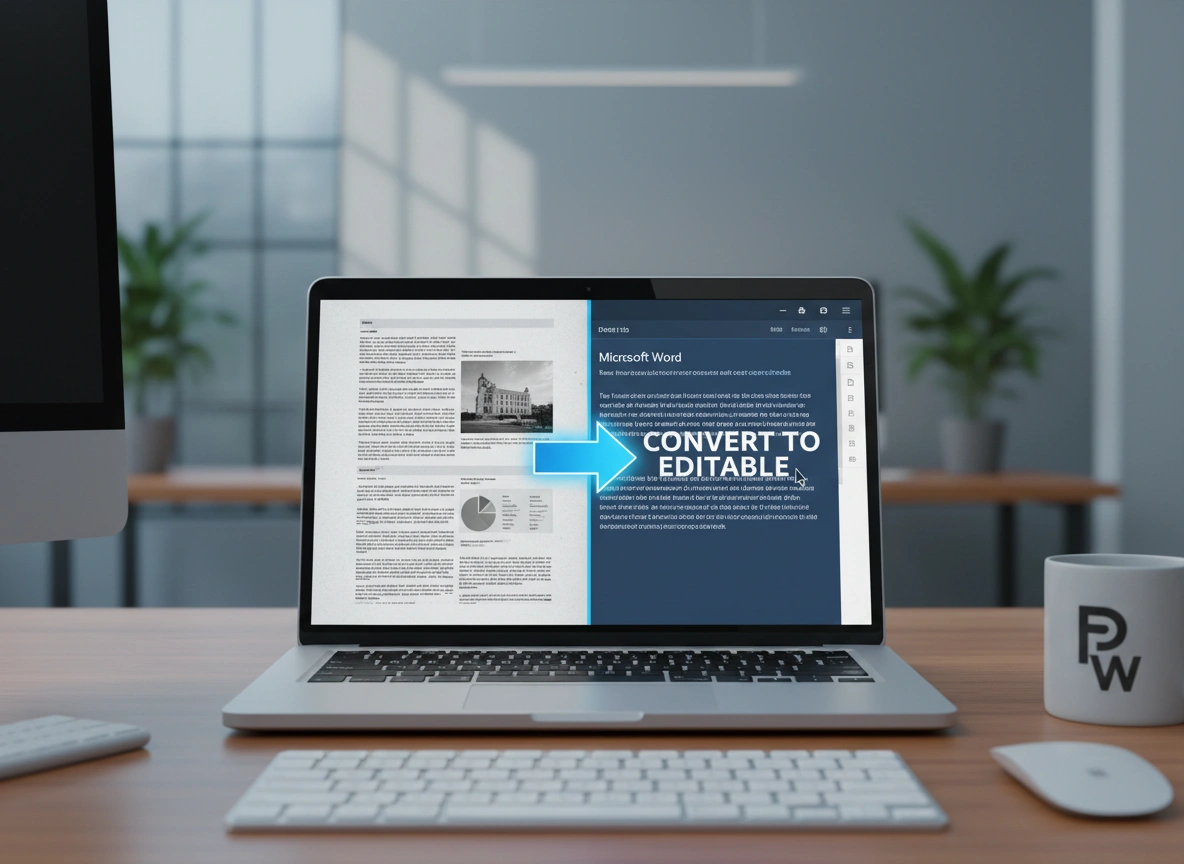
A scanned PDF can feel like a digital wall. You have the text in front of you, but it’s trapped inside an image-based file, making it impossible to edit, copy, or search. This common challenge can disrupt workflows, slow down projects, and create unnecessary manual work. Converting these scanned documents into editable Microsoft Word files bridges this gap, unlocking the information and allowing you to seamlessly integrate it into your projects. This guide will walk you through the process, exploring various methods and tools to help you transform static scans into dynamic, fully editable documents.
Why Convert a Scanned PDF?
The need to convert a scanned PDF into an editable Word document arises in many professional and personal scenarios. Imagine receiving a printed contract that needs slight modifications, a physical report that must be updated with new data, or historical documents you wish to digitize and archive. Manually retyping these pages is not only time-consuming but also highly susceptible to human error.
By converting the document, you gain several key advantages:
- Editability: Make corrections, add new paragraphs, or completely restructure the content without starting from scratch.
- Searchability: Once converted, the text becomes searchable, allowing you to quickly find specific information using Word’s “Find” function.
- Accessibility: Screen readers and other assistive technologies can easily interpret text in a Word document, making the content accessible to a wider audience.
- Efficiency: Save countless hours of manual data entry, freeing up valuable time for more critical tasks.
The core technology that makes this conversion possible is Optical Character Recognition (OCR). OCR software analyzes the image of a scanned document, identifies characters, and converts them into machine-encoded text. The quality of the final Word document depends heavily on the effectiveness of the OCR tool used.
Method 1: Using Adobe Acrobat Pro DC
Adobe Acrobat is the industry standard for creating and managing PDF files. Its professional version, Acrobat Pro DC, includes a powerful OCR engine designed for high-accuracy conversions. While it is a paid subscription service, its reliability and feature set make it a top choice for businesses and individuals who frequently work with PDFs.
Step-by-Step Guide for Adobe Acrobat Pro
- Open Your Scanned PDF: Launch Adobe Acrobat Pro DC and open the scanned PDF file you want to convert. Acrobat will often automatically detect that it’s a scanned document and prompt you to enhance it.
- Access the Export PDF Tool: Look for the “Export PDF” tool in the right-hand pane. If it’s not visible, go to the “Tools” center and add it.
- Choose Your Export Format: Select “Microsoft Word” as your export format. You will have two options: “Word Document” (.docx) or “Word 97-2003 Document” (.doc). For modern use, .docx is the standard choice.
- Configure OCR Settings (If Needed): Click the gear icon next to the format selection to access settings. Here, you can ensure that the “Recognize Text” option is enabled. You can also change the language of the document, which significantly improves OCR accuracy if your document is not in English.
- Export the Document: Click the “Export” button. Adobe Acrobat will run its OCR process to recognize the text and then create a new Word document.
- Save and Review: Choose a location to save your new .docx file. Once the conversion is complete, open the document in Microsoft Word to review it. Check for any formatting inconsistencies or character recognition errors and make the necessary corrections.
Adobe’s strength lies in its ability to preserve complex layouts, including tables, columns, and images, with remarkable precision.
Method 2: Using Microsoft Word’s Built-in Feature
Many users are unaware that recent versions of Microsoft Word (Word for Microsoft 365, Word 2021, Word 2019) have a built-in PDF reflow feature that can convert PDFs, including some scanned ones, directly into editable documents. This method is incredibly convenient as it doesn’t require any additional software.
Step-by-Step Guide for Microsoft Word
- Open Microsoft Word: Launch a new, blank document in Word.
- Open the PDF File: Go to
File > Open. Navigate to the location of your scanned PDF file and select it. - Confirm the Conversion: Word will display a notification message explaining that it will now convert your PDF into an editable Word document. It also warns that the process may take a while and the resulting document might not look exactly like the original PDF, especially if it contains a lot of graphics. Click “OK” to proceed.
- Wait for the Conversion: Word will then use its internal OCR and conversion engine to process the file. The time this takes depends on the document’s length and complexity.
- Enable Editing and Review: Once opened, the document will likely be in “Protected View.” Click “Enable Editing” at the top of the screen. Carefully review the entire document. Word’s OCR is effective but may struggle with low-quality scans or complex formatting. Be prepared to manually adjust text, spacing, and layout.
This method is an excellent, cost-free option for simple, text-heavy documents. For highly formatted or lengthy scans, a dedicated OCR tool may provide better results.
Method 3: Using Free Online Converters
A quick web search reveals dozens of free online PDF-to-Word converters. These browser-based tools offer a convenient solution for one-off conversions without needing to install software. However, it’s crucial to be mindful of privacy and security, as you are uploading your document to a third-party server.
Popular online tools include Smallpdf, iLovePDF, and PDF2Go. Most of them follow a similar process.
General Steps for Online Converters
- Navigate to the Website: Choose a reputable online converter and open its PDF-to-Word conversion page.
- Upload Your Scanned PDF: Drag and drop your file into the upload box or use the “Choose File” button to select it from your computer. Many services also allow you to import files from cloud storage like Google Drive or Dropbox.
- Select the OCR Option: This is the most critical step. Since you are working with a scanned PDF, you must select the option that includes OCR. Some sites may label this as “Convert with OCR” or have a specific tool for scanned documents. If you don’t use OCR, you will get a Word file containing only an image of your text, which is not editable.
- Start the Conversion: Click the “Convert” button to begin the process. The server will process your file, perform OCR, and generate the Word document.
- Download and Review: Once finished, a download link will appear. Download the .docx file to your computer and open it in Word to check its accuracy and formatting.
A word of caution: Avoid using free online converters for sensitive or confidential documents. Because your file is uploaded to an external server, you lose control over your data. Always read the platform’s privacy policy before uploading.
Tips for Ensuring High-Quality Conversions
The accuracy of any OCR process is heavily dependent on the quality of the source scan. To get the best results when converting your scanned PDF to Word, follow these best practices:
- Start with a High-Quality Scan: Scan your document at a resolution of at least 300 DPI (dots per inch). Higher resolutions provide more detail for the OCR engine to analyze, leading to fewer errors.
- Ensure Good Lighting and Contrast: Avoid shadows, glare, and faded text. The text should be dark and clear against a light background.
- Straighten the Document: A skewed or tilted document can confuse the OCR software. Ensure the paper is placed flat and straight on the scanner bed. Most modern scanning software includes an auto-straighten feature.
- Specify the Correct Language: If your document is in a language other than English, make sure you select the correct language in the OCR settings. This helps the software recognize language-specific characters and diacritics.
- Proofread Thoroughly: No OCR process is 100% perfect. Always budget time to proofread the converted document carefully. Pay close attention to numbers, special characters, and similar-looking letters (e.g., ‘l’ and ‘1’, ‘o’ and ‘0’).
Conclusion: Unlocking Your Documents
Converting a scanned PDF to an editable Word document transforms a static image into a flexible and valuable digital asset. Whether you choose the robust power of Adobe Acrobat Pro, the built-in convenience of Microsoft Word, or a quick online tool, the ability to edit, search, and repurpose your documents is a significant productivity booster.
By starting with a high-quality scan and selecting the right tool for your needs, you can minimize errors and save hours of tedious retyping. The final step—a thorough proofread—ensures your new Word document is a reliable and accurate reflection of the original, ready for whatever task comes next.
